
This won’t be new for some of you, but it’s a hidden feature and I use it so often that I thought I’d make mention of it.
Say you’re created a sound effect, or piece of music — anything you want to use again elsewhere. In other applications you’d Option-drag the clip in question, creating a copy at the destination of the drag. For some reason, Media Composer doesn’t support that standard operation. But it does offer you something that’s arguably more flexible: a quick shortcut to copy a selected clip or marked region to the source monitor. From there, you can edit it wherever you want. The shortcut, not visible in the menus, is Command-Option-C. Mark a region in the timeline and select tracks, or simply select a clip or clips. Then hit Command-Option-C. Your material instantly appears in the source monitor.
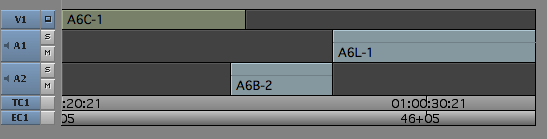
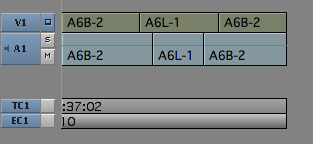
Note that if you copy selected clips they’ll appear with head and tail marks already assigned. That saves a couple of keystrokes. But if you marked a region instead, you’ll have to re-mark it in the source. Also note that if you select non-adjacent clips, MC will pad your selection with black, preserving their spatial relationship.
Here are two examples.
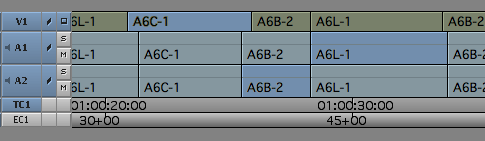
1. Copying clips.
Timeline before Command-Option-C:
Source Monitor after Command-Option-C:
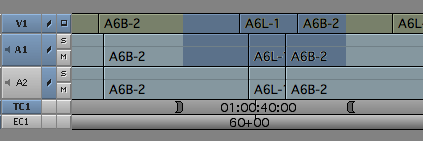
2. Copying a region.
Timeline before Command-Option-C:
Source Monitor after Command-Option-C:
Article from splicenow.com
