
It’s the end of a long day and you’re working on a complex timeline: eight or ten audio tracks, many video tracks. You’ve been patching your source material all day long and the patch panel is scrambled. Now you want to cut something straight across. Maybe you’re assembling two sequences together, maybe you’re integrating part of an old version. You want all your patching to go away, so you carefully re-patch, one track at a time. But all those track numbers start looking the same and sure enough, you make a mistake.
There’s an easier way. Hidden in the Special Menu is a option that instantly and reliably patches everything straight across: Restore Default Patch.
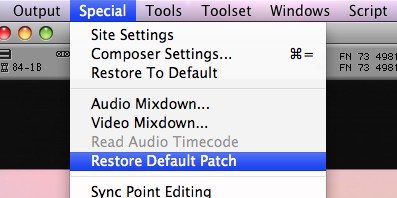
If you’re like me, you’ll probably want this command assigned somewhere on your keyboard. Then, with one button press, you’ll know you’re inserting material where it belongs.
Open the Command Palette (Command-3) and your Keyboard settings. Select “Menu to Button Reassignment.” Click the button you want to change, pull down the Special Menu and select Restore Default Patch. The letters RD appear on your chosen key. Hit it and standard patching is restored. I use it many times a day.
Article from splicenow.com
